Uninstalling Admin By Request
There are several methods available for uninstalling Admin By Request, both for single endpoints (i.e., attended, one at a time) and multiple endpoints (unattended, scripted).
These methods are not sequential - pick one or more, depending on your requirements.
Single Endpoint Uninstall Methods
1. Using a PIN Code
The first few steps in this procedure require access to the portal.
-
In the Admin By Request portal:
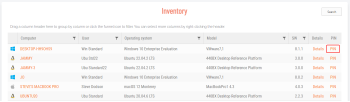
- Navigate to the Inventory page and identify the device to uninstall
- Locate the device in the inventory list
- In the PIN column, click PIN for that device
 tip
tipColumns can be switched around - the PIN column in your portal might not be the right-most column
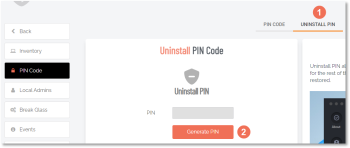
- Click the UNINSTALL PIN tab and then click Generate PIN
 info
infoClicking UNINSTALL PIN also displays a list of previous uninstall events on this computer below the Uninstall Pin Code window
- Copy the generated PIN
-
On the target device:
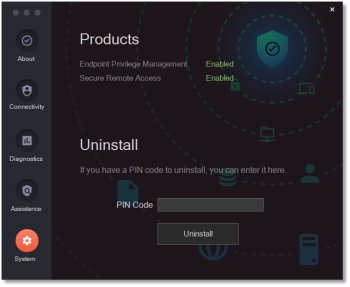
- Select the Admin By Request icon from the system tray
- Click About Admin By Request
- Select System
- Enter the Uninstall PIN you generated into the PIN Code field
- Click Uninstall
Multiple Endpoints - via Management System
Instructions specific to each management system are out of scope of this document, however a general outline is provided below. For more assistance with your particular management system, please reach out to Endpoint Security.
-
Use the existing Admin By Request package or create a package as detailed in Installing Admin By Request | Multiple Endpoints.
-
Scope the uninstall deployment to endpoints.
Tamper Prevention
When a user initiates an administrator session:
- The user's role is not actually changed from user to admin
- The user is granted all administrator rights, except the right to add, modify or delete user accounts
- Therefore, there is no case where the user can create a new account or change their own role and become a permanent administrator
The user also cannot uninstall Admin By Request to keep the administrator session open forever. Furthermore:
- All settings, configuration and program files are monitored during administrator sessions
- If the user tries to remove or change any of the Admin By Request files, these are restored straight away
- The attempted activity is logged
Verification of Uninstallation
- Restart the computer to complete the uninstallation process
- After restarting, check that the Admin By Request folder is deleted from the installation directory
- Ensure that the application is no longer listed in Programs and Features in the Control Panel
This documentation was pulled from the Admin by Request Documentation and adapted to our environment. If you see any issues, please reach out to the endpoint security team, endpoint-security@tamu.edu to make appropriate changes.