Installing Admin By Request
Prerequisites
Admin By Request supports macOS, Linux, and Windows workstation and server operating systems, however, our implementation is limited to Windows workstations running:
- Windows 11
- Windows 10
Administrator Access Requirements
- If installing individually on client endpoints, you will need preexisting administrator privileges on every workstation that executes the installation client.
- If installing via a management system, you need the ability to package software for your management system and scope package deployment.
Installation Methods
Endpoint Security maintains a supported package containing an installer file and deployment scripts for ManageEngine Desktop Central, Microsoft Configuration Manager, and Intune. The package may also be used for single endpoint installations. These packages are provided through the Endpoint Security - Shared Channel in Microsoft Teams, and source code can be found at AdminByRequestEPM-Deployment.
Admins are welcome to build their own packages instead of using the supported package, using the installer file from the Admin By Request console. However, Endpoint Security can only provide support for the package we maintain. In the event of issues with an in-house package, Endpoint Security recommends switching to the supported package.
Installing a Single Endpoint
The installation process consists of two parts:
Download and Install
-
Download or copy the supported package zip file onto the drive, and decompress it.
-
Open Windows PowerShell as an administrator.
-
Navigate to the decompressed package.
-
Run
& .\AdminByRequestMonoAppDeployment.ps1 -ScriptType CombinedInstallation. Logging will appear indicating the process of detecting for existing installations and installing the packaged version.tipIf you encounter an error indicating that the script cannot run due to PowerShell Execution Policy, you may need to adjust the execution policy on the endpoint. To minimize the impact this has to the system overall, use
Set-ExecutionPolicy -ExecutionPolicy Bypass -Scope Process -Forceand close the PowerShell window when complete.infoAlternately, the installer can be invoked directly from the Files directory of the package.
-
When the installation completes, the Admin By Request icon appears in the system tray in the bottom right corner of the screen:
- Red icon: Logged in as Administrator
- Green icon: Logged in as Standard User

-
Click the icon to show details about the client or to start an Admin Session.

Test the Installation
-
Launch the application by selecting it from the system tray and clicking About Admin By Request
-
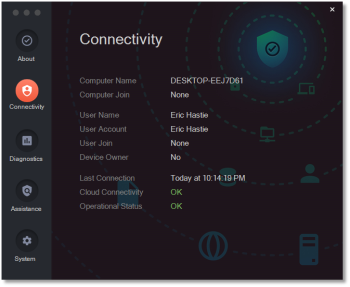
Select Connectivity and verify:
- Operational Status: OK
- Cloud Connectivity: OK
Multiple Endpoints - via Management System
Instructions specific to each management system are out of scope of this document, however a general outline is provided below. For more assistance with your particular management system, please reach out to Endpoint Security.
-
Upload the package to your management system in a format it accepts.
-
Configure the install, uninstall, and if supported, detection scripts.
-
Detection scripts (for managment systems with this functionality)
- a. The detection script can be invoked with
powershell.exe -NoProfile -ExecutionPolicy Bypass -File .\AdminByRequestMonoAppDeployment.ps1 -ScriptType Detection - b. Alternately, the script will run in detection mode when no other parameters are specified, and will base its output on the specific management system calling the script. In these cases, it is sufficient to paste the contents of
AdminByRequestMonoAppDeployment.ps1into the detection script window.
- a. The detection script can be invoked with
-
Installation scripts
- a. For systems supporting the use of detection scripts,
powershell.exe -NoProfile -ExecutionPolicy Bypass -File .\AdminByRequestMonoAppDeployment.ps1 -ScriptType Installationwill invoke the script in installation mode. - b. For systems that do not support detection scripts,
powershell.exe -NoProfile -ExecutionPolicy Bypass -File .\AdminByRequestMonoAppDeployment.ps1 -ScriptType CombinedInstallationwill perform a detection, then installation only if the detection is not successful.
- a. For systems supporting the use of detection scripts,
-
Uninstallation scripts
- a. For systems supporting the use of detection scripts,
powershell.exe -NoProfile -ExecutionPolicy Bypass -File .\AdminByRequestMonoAppDeployment.ps1 -ScriptType Uninstallationwill invoke the script in uninstallation mode. - b. For systems that do not support detection scripts,
powershell.exe -NoProfile -ExecutionPolicy Bypass -File .\AdminByRequestMonoAppDeployment.ps1 -ScriptType CombinedUninstallationwill perform a detection, then uninstallation only if the detection is successful.
- a. For systems supporting the use of detection scripts,
-
-
Configure Requirements:
-
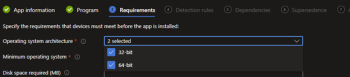
Operating system architecture: Select both 32-bit and 64-bit
-
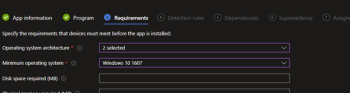
Minimum operating system: Select Windows 10 1607
-
-
Once package has been completed, scope deployment to endpoints.
Note: As part of the overall installation process, pick several endpoints at random and test that installation was successful.
This documentation was pulled from the Admin by Request Documentation and adapted to our environment. If you see any issues with that please reach out to the endpoint security team, endpoint-security@tamu.edu to make appropriate changes.